CSV Import API (v3)
Summary
- Overview — Quick start
- Key concepts
- Operation semantics (insert / update / delete)
- Step 1: Upload the ZIP file
- Step 2: Check the import status
- The ZIP contents
- File reference
- Examples
- Troubleshooting
- API Reference
1. Overview
The CSV Import API (v3) lets you massively create and update customizable products — and the entities around them (variants, sides, print areas, printing methods, sales-channel mappings, translations) — by uploading a single ZIP archive of CSV files.
Every entity is addressed by a stable key you choose (EntityReferenceKey), so the same import performs an upsert: a row creates the entity when the key is new and updates it when the key already exists. Re-posting the same archive produces no further changes (the operation is idempotent).
The import is asynchronous and works in two steps, each with a dedicated endpoint:
- Upload the ZIP archive. The call starts a background task and immediately returns a
TaskID. - Poll the status of the task with that
TaskIDuntil it reaches a terminal state.
- CSV Import API (v3) — this page. The current CSV format, based on the canonical files described below. Use it for new integrations.
- CSV Import API (legacy) — the older
products.txt/sides.txt/areas.txtformat. Kept for backward compatibility only.
The same import is also available as a no-code wizard in the Zakeke Backoffice, under Tools → Bulk import. There you can upload the ZIP, map your columns to the canonical fields, validate the data and start the import without calling the API. It uses the same canonical files and semantics described on this page.
If the Product Catalog API is active, the variants specified in the CSV must exactly match the products in the Product Catalog API. Otherwise, conflicts may occur, preventing proper variant management.
Quick start
The smallest possible import is a single customizable product with one side and one print area — four CSV files zipped together.
1. Build the four CSV files (a "simple" product uses one variant with the reserved key DEFAULT_VARIANT):
PRODUCTS.CSV
EntityReferenceKey,Name
MUG001,Plain Mug
VARIANTS.CSV
ProductReferenceKey,EntityReferenceKey,Name
MUG001,DEFAULT_VARIANT,Default
SIDES.CSV
ProductReferenceKey,VariantReferenceKey,EntityReferenceKey,Name,ImageSideUrl,PPCM
MUG001,DEFAULT_VARIANT,MUG001_front,Front,https://example.com/mug-front.png,100
PRINTAREAS.CSV
ProductReferenceKey,VariantReferenceKey,SideReferenceKey,Name,DefinitionType,X,Y,Width,Height
MUG001,DEFAULT_VARIANT,MUG001_front,Front Area,Rectangle,0,110,860,320
2. Zip them and upload — the call returns a TaskID:
curl -X POST https://api.zakeke.com/v3/csv/import \
 -H "Authorization: Bearer <Access-Token>" \
 -H "Content-Type: multipart/form-data" \
 -F data="@catalog.zip"
3. Poll the status with that TaskID until it reaches a terminal state (Completed, CompletedWithErrors or Error):
curl https://api.zakeke.com/v3/csv/status/123654 \
 -H "Authorization: Bearer <Access-Token>"
That's the whole loop. From here, add more files (variants, printing methods, sales channels, …) as your catalog grows — see File reference for every column and Examples for richer, ready-to-adapt archives.
Prefer to start from a working file? Download the minimal product archive — or browse the full set of examples (multi-variant, printing methods, effects, resizable, sales channels, deletions) in Download ready-made archives. The same examples are also available in the Backoffice wizard under Tools → Bulk import.
2. Key concepts
Before building your archive, make sure the following entities are clear.
- Product — a customizable item. It contains one or more variants.
- Variant — a purchasable version of the product identified by a combination of attributes (e.g. color / size). A product without variants (a "simple product") must still declare a single default variant with
EntityReferenceKey = DEFAULT_VARIANT. - Side — a customizable surface of a variant (e.g. front / back of a t-shirt). A side has a background image and a resolution (
PPCM). - Print area — the region inside a side where the end user can place text and graphics.
The catalog hierarchy is therefore:
Product                 (PRODUCTS.CSV)
└─ Variant              (VARIANTS.CSV)      — DEFAULT_VARIANT for simple products
   └─ Side              (SIDES.CSV)         — background image + PPCM
      └─ Print area     (PRINTAREAS.CSV)    — Rectangle / Ellipse / PNGMask / LayeredPDF
Each level lives in its own CSV file and points to its parent by reference key. Other entities you can import:
- Printing methods — how a product can be personalized and how print-ready files are generated (output formats, DPI, colour limits, effects). Assigned to products/sides by key.
- Sales channels — mapping between a Zakeke product/variant and the corresponding product on an external storefront.
- Resizable products — products whose dimensions the end user can change (posters, banners, …). They add
RESIZABLEOPTIONS/RESIZABLEPRESETS/PRODUCT3DSETTINGSand cannot have multiple variants. - Translations — language-specific versions of source strings.
Identity & references. Every row is identified by its EntityReferenceKey (unique within its scope). Child files reference their parent by key — for example a SIDES.CSV row points to its variant with VariantReferenceKey, and to its product with ProductReferenceKey. The parent must exist, either already in Zakeke or in the same archive.
3. Operation semantics (insert / update / delete)
The import distinguishes omitted vs empty vs explicit values, and treats list cells as authoritative sets.
| Case | Cell content | Effect |
|---|---|---|
| Omitted column | the column is not in the file | Leave the stored value unchanged |
| Empty cell | `` (nothing) | Leave the stored value unchanged |
| Reset token | __NULL__ | Clear the value (reset to the system default) |
| Value | any non-empty value | Create if absent, overwrite if present |
Additional rules:
- Upsert by key. A row creates the entity when its
EntityReferenceKeyis new, and updates it when the key already exists. Only the columns you include are touched. - Lists are authoritative. A list cell (e.g.
PrintingMethodReferenceKeys,OutputTypes,PaletteColors) replaces the whole stored list. To add one value you must resend the existing ones too. List values are separated by a semicolon;(see the format notes). - Print areas / sides are authoritative per parent. When you send a side's print areas, or a variant's sides, the provided set replaces the stored one.
- Deletions are never implicit. Omitting an entity never deletes it. To remove a Product, a Printing method or a Translation, list its key in
DELETES.CSV. - Idempotency. Re-posting the same archive after a successful run results in no net changes.
4. Step 1: Upload the ZIP file
Starts the background task that imports the archive. Returns a TaskID used to poll the status.
4.1 Endpoint
POST https://api.zakeke.com/v3/csv/import
4.2 Authentication
Like every Zakeke API call, this endpoint requires authentication and authorization. It must be called in S2S (server-to-server) mode with a Server-to-Server authorization token. See how to get an S2S OAuth token.
4.3 Parameters
The call uses the multipart/form-data encoding to upload the ZIP archive. The Content-Type header must be multipart/form-data and the body must contain the file bytes.
The archive must be a ZIP containing the canonical CSV files described in section 6. Maximum archive size: 200 MB.
cURL example
curl -X POST https://api.zakeke.com/v3/csv/import \
 -H "Accept: application/json" \
 -H "Authorization: Bearer <Access-Token>" \
 -H "Content-Type: multipart/form-data" \
 -F data="@c:/user/data/catalog.zip"
.NET C# example
using System;
using System.Net.Http;
using System.IO;
using System.Threading.Tasks;
using System.Text.Json;

class Program
{
    static async Task Main()
    {
        var url = "https://api.zakeke.com/v3/csv/import";
        var filePath = @"path/to/catalog.zip";     // your ZIP archive
        var bearerToken = "your_s2s_token_here";     // your S2S access token

        using var client = new HttpClient();
        client.DefaultRequestHeaders.Authorization =
            new System.Net.Http.Headers.AuthenticationHeaderValue("Bearer", bearerToken);

        using var content = new MultipartFormDataContent();
        var fileContent = new ByteArrayContent(File.ReadAllBytes(filePath));
        fileContent.Headers.ContentType =
            new System.Net.Http.Headers.MediaTypeHeaderValue("application/zip");
        content.Add(fileContent, "data", Path.GetFileName(filePath));

        var response = await client.PostAsync(url, content);
        var body = await response.Content.ReadAsStringAsync();

        if (response.IsSuccessStatusCode)
        {
            var result = JsonSerializer.Deserialize<ImportTaskResponse>(body);
            Console.WriteLine($"Import started. TaskID: {result.TaskID}");
        }
        else
        {
            Console.WriteLine($"Upload failed ({(int)response.StatusCode}): {body}");
        }
    }
}

public class ImportTaskResponse
{
    public long TaskID { get; set; }
}
4.4 Output
A JSON object with the identifier of the created task:
| Property | Type | Description |
|---|---|---|
TaskID | integer | Identifier of the import task. Use it to poll the status (step 2). |
{
  "TaskID": 123654
}
4.5 HTTP response codes
| Code | Description |
|---|---|
| 200 | The import task was created successfully. The body contains the TaskID. |
| 400 | The archive could not be accepted (e.g. malformed ZIP/CSV, or blocking validation errors). The body contains an error message. |
| 403 | The seller is not authenticated / not authorized. |
| 415 | The request is not multipart/form-data, or no file was provided. |
Validation runs synchronously before the task is enqueued: if the archive is structurally invalid the call returns 400 and no task is created. Cross-entity issues discovered while the task runs are reported through the status endpoint (see step 2).
5. Step 2: Check the import status
Uses the TaskID from step 1 to monitor the task until it reaches a terminal state.
5.1 Endpoint
GET https://api.zakeke.com/v3/csv/status/{taskID}
5.2 Parameters
The endpoint accepts the taskID returned by the upload endpoint as a path parameter.
5.3 Output
| Property | Type | Description |
|---|---|---|
TaskID | integer | The task identifier. |
Status | string | Current state of the task (see table below). |
Errors | array of string | List of error messages, if any. |
Possible Status values:
| Status | Meaning |
|---|---|
Waiting | The task is queued, waiting to be processed. |
Processing | The system is processing the task. |
Completed | The task completed successfully, with no errors. |
CompletedWithErrors | The task completed, but some rows/entities failed (usually validation errors). See Errors. |
Error | The task failed due to a system error. |
{
  "TaskID": 123654,
  "Status": "Completed",
  "Errors": []
}
5.4 HTTP response codes
| Code | Description |
|---|---|
| 200 | Status retrieved successfully. See the body for the current state and any errors. |
| 404 | The task was not found or the taskID is not valid. |
While a previous import for the same seller is in Waiting or Processing state, a new import for that seller is serialized and executed only after the running one finishes.
6. The ZIP contents
The archive contains one CSV file per entity type. Only the files you need are required — you can send a single PRODUCTS.CSV for a minimal catalog, or a DELETES.CSV on its own to remove entities.
| File | Contents | |
|---|---|---|
PRODUCTS.CSV | Top-level products | Main entry |
VARIANTS.CSV | Product variants (use DEFAULT_VARIANT for simple products) | Required to create a product |
SIDES.CSV | Customizable sides of each variant | Required to create a variant |
PRINTAREAS.CSV | Print areas of each side | Required to create a side |
PRINTINGMETHODS.CSV | Printing methods (DPI, output formats, colour limits) | Optional |
PRINTINGMETHODEFFECTS.CSV | Visual effects (Engraving / Wood / Pixelation) of a printing method | Optional |
SALESCHANNELS.CSV | Product ↔ external storefront mapping | Optional |
SALESCHANNELSATTRIBUTES.CSV | Variant attribute ↔ external storefront mapping | Optional |
RESIZABLEOPTIONS.CSV | Resize settings for resizable products | Optional |
RESIZABLEPRESETS.CSV | Predefined sizes for resizable products | Optional |
PRODUCT3DSETTINGS.CSV | 3D / AR settings (resizable products) | Optional |
TRANSLATIONS.CSV | Translations of source strings | Optional |
DELETES.CSV | Entities to remove | Optional |
Format notes
- Files are standard UTF-8 CSV with a header row and a comma (
,) as the column delimiter. - Inside a single cell, list values (e.g. multiple printing-method keys, multiple output formats) are separated by a semicolon (
;) — for exampleDTG;EMB-1c. Do not use commas inside a cell, they would be interpreted as column separators. - Use the exact canonical column names shown in section 7.
- A simple product (no real variants) must declare one variant with
EntityReferenceKey = DEFAULT_VARIANT.
Every image referenced by a URL column (ImageUrl, ImageSideUrl, MaskUrl, …) must be publicly reachable and follow these rules:
- The URL must start with
httporhttpsand be encoded per RFC 2396 / RFC 1738 (for example, a comma becomes%2C). - Product and side images must be a non-animated GIF (
.gif), JPEG (.jpg/.jpeg) or PNG (.png). Mask images (MaskUrl) must be PNG. - Upload the image at its real size — do not send thumbnails or upscaled images.
- Do not add promotional text, watermarks or borders to the image.
7. File reference
The Required column means: mandatory when creating the entity; it can be omitted on updates that don't change it, unless marked Always (identifying/parent keys, always needed).
- Always — always required (identifying and parent keys).
- On create — required the first time the entity is created; optional on update.
- Conditional — required only in certain cases (explained in the notes).
- Optional — never required.
7.1 PRODUCTS.CSV
| Column | Type | Required | Description |
|---|---|---|---|
EntityReferenceKey | string | Always | Your unique identifier for the product (SKU or product code). Used to upsert. |
Name | string | On create | Product name shown to the end user in the customizer and the catalog. |
ImageUrl | string (URL) | Optional | Main thumbnail. If omitted, the first side's image is used. Keep it ≤ 2000×2000 px. |
State | enum | Optional | published or unpublished. Defaults to unpublished if omitted. |
PrintingMethodReferenceKeys | list | Optional | Semicolon-separated keys of the printing methods enabled on this product (e.g. DTG;EMB-1c). |
7.2 VARIANTS.CSV
| Column | Type | Required | Description |
|---|---|---|---|
ProductReferenceKey | string | Always | Reference key of the parent product. |
EntityReferenceKey | string | Always | Unique identifier of the variant. Use DEFAULT_VARIANT for a simple (single-variant) product. |
Name | string | On create | Display name of the variant (e.g. Red — XL). Ignored for DEFAULT_VARIANT. |
Attributes | string | Optional | Variant attributes, separated by ;. Each one is AttributeCode:AttributeName=OptionCode:OptionValue — all four parts required (e.g. Color_001:Color=Black_001:Black;Size_001:Size=S_001:S). Required for products with multiple variants. |
A product with a single variant must use EntityReferenceKey = DEFAULT_VARIANT. A product with more than one variant must not use it. DEFAULT_VARIANT variants cannot carry Attributes or sales-channel attribute mappings.
Choosing which variants to import
In Zakeke you only declare the customizable variants of a product — which can be a subset of the variants that exist on your store. Add one VARIANTS.CSV row per customizable variant, all pointing to the same ProductReferenceKey.
Include a variant only when it needs its own customization (different sides, print areas or images). Consider a t-shirt sold in two sizes (S, M) and two colors (Red, Yellow) — four store variants in total:
- If customization depends on color only (the print area is the same for every size), declare just two variants, one per color.
- If customization must also differ per size, declare all four combinations, one row each.
The Attributes cell describes what distinguishes each variant, as a ;-separated list of AttributeCode:AttributeName=OptionCode:OptionValue entries. For the color-only case you would have two rows with, respectively:
Color_001:Color=Red_001:Red
Color_001:Color=Yellow_001:Yellow
For the color-and-size case, four rows such as:
Size_001:Size=S_001:S;Color_001:Color=Red_001:Red
Size_001:Size=M_001:M;Color_001:Color=Red_001:Red
Size_001:Size=S_001:S;Color_001:Color=Yellow_001:Yellow
Size_001:Size=M_001:M;Color_001:Color=Yellow_001:Yellow
The attribute codes and option codes you choose here are the reference used by your product-page integration to identify the purchasable variant the customer selected. See the product-page integration for how these values are matched at customization time.
7.3 SIDES.CSV
| Column | Type | Required | Description |
|---|---|---|---|
ProductReferenceKey | string | Always | Parent product. |
VariantReferenceKey | string | Always | Parent variant the side belongs to. |
EntityReferenceKey | string | Always | Unique key of the side within its variant (e.g. front, back). When a side is shared across variants, use the same key. |
Name | string | On create | Display name of the side, shown when switching faces in the customizer. |
ImageSideUrl | string (URL) | Conditional | Background image of the side. Required when creating a new side. |
PPCM | number (>0) | Conditional | Pixels-per-centimeter of the side image — drives the print scale and the dimensions shown to the user. Required when the side has print areas. |
PrintingMethodReferenceKeys | list | Optional | Restricts this side to a subset of the product-level printing methods. Semicolon-separated. |
PPCM (pixels-per-centimeter) tells Zakeke the physical scale of the side image, which in turn drives the print resolution and the dimensions shown to the end user for the print areas defined on this side.
You can calculate it from any two points in the image whose real distance you know: divide the distance in pixels between the two points by the distance in centimeters between the same two points. For example, if two points that are 20 cm apart in reality span 380 pixels in the image, PPCM = 380 / 20 = 19.
PPCM becomes mandatory as soon as the side has print areas.
7.4 PRINTAREAS.CSV
| Column | Type | Required | Description |
|---|---|---|---|
ProductReferenceKey | string | Always | Parent product. |
VariantReferenceKey | string | Always | Parent variant. |
SideReferenceKey | string | Always | Parent side that contains this area. |
Name | string | Optional | Internal name of the print area, for your own reference. |
DefinitionType | enum | Always | Shape of the area: Rectangle, Ellipse, PNGMask or LayeredPDF. |
X | number | Conditional | Distance from the left edge of the side, in pixels (Rectangle / Ellipse only). |
Y | number | Conditional | Distance from the top edge of the side, in pixels (Rectangle / Ellipse only). |
Width | number | Conditional | Width of the area in pixels (Rectangle / Ellipse only). |
Height | number | Conditional | Height of the area in pixels (Rectangle / Ellipse only). |
MaskUrl | string (URL) | Conditional | URL of the transparent PNG that defines the printable region (PNGMask only). |
LayeredPDFUrl | string (URL) | Conditional | URL of the layered PDF describing the area, incl. bleed / cut lines (LayeredPDF only). |
ClipOut | boolean | Optional | Whether the user's texts and images are cropped to the area shape (true) or kept at least as wide and tall as the area outer bounds — which can produce output larger than the shape (false). Defaults to true. |
For Rectangle / Ellipse areas, X, Y, Width, Height are required and must be greater than zero. For PNGMask provide MaskUrl; for LayeredPDF provide LayeredPDFUrl.
Defining a print area with a PNG mask
When DefinitionType = PNGMask, the printable region is described by a mask image: the print areas are the black pixels, and everything else is transparent. This lets you define areas of any shape, including complex or multiple shapes on the same side.
The images below show how to build the mask for two products — a t-shirt and a phone case. On the left are the print areas you want to obtain, in the center the side image uploaded via ImageSideUrl, and on the right the mask image to reference in MaskUrl.
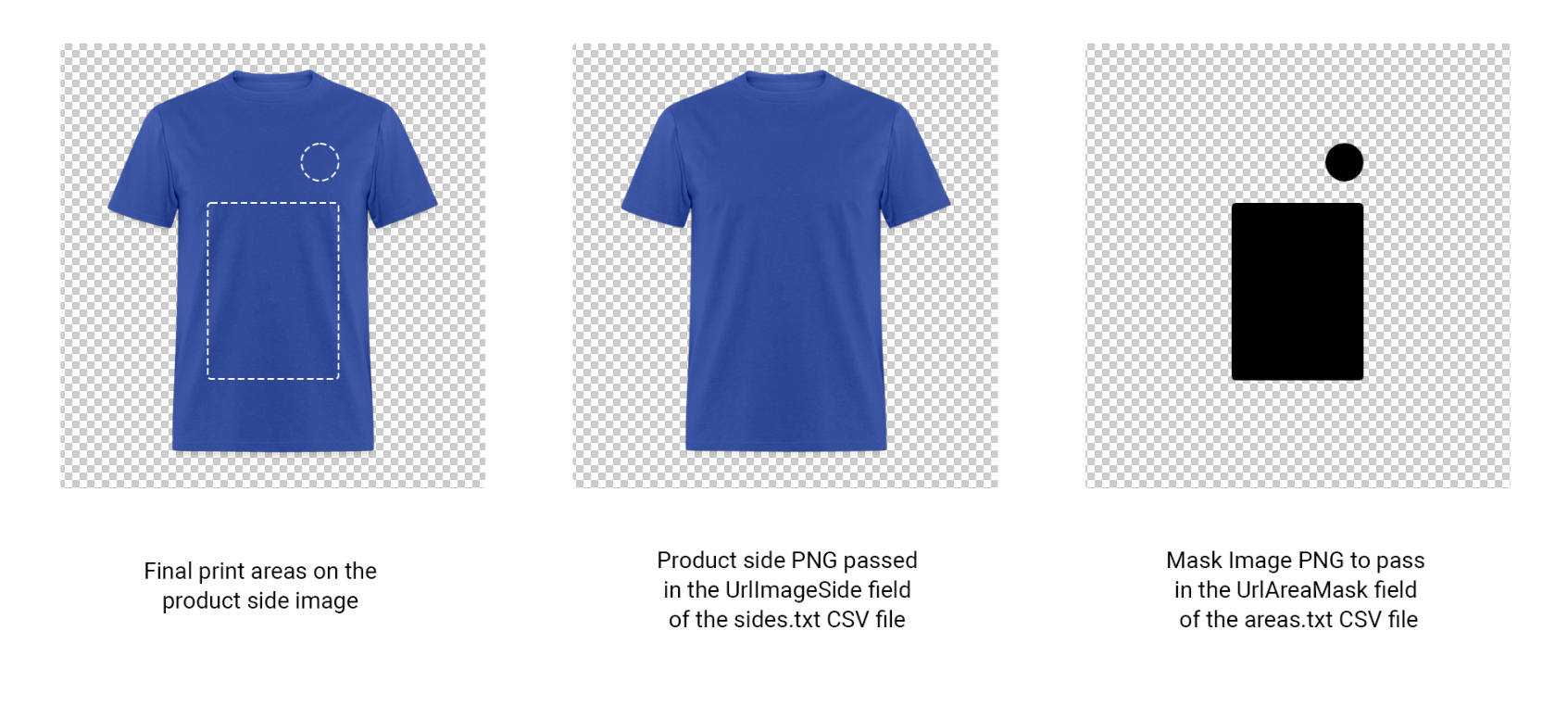
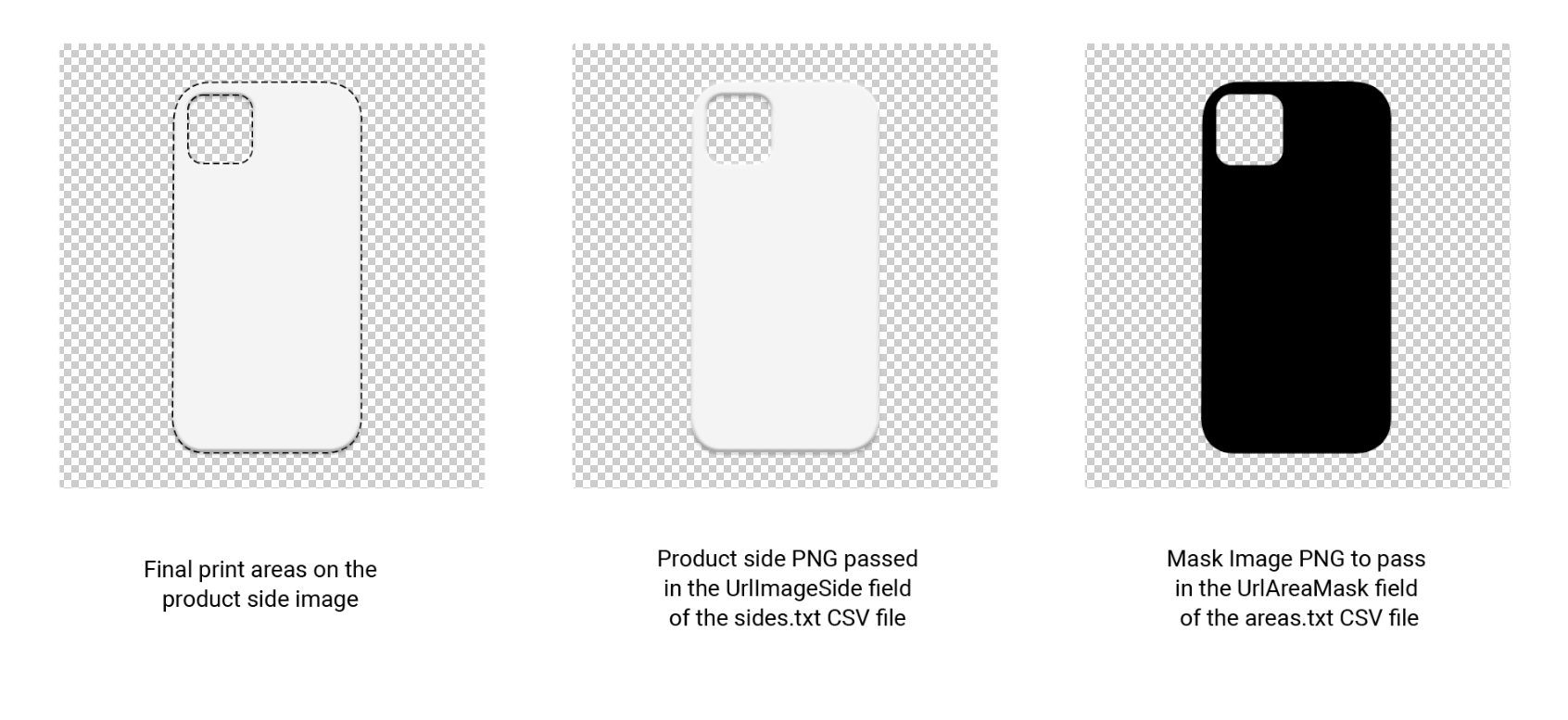
Requirements for the mask image:
- Use PNG (
.png). - Paint one or more fully black shapes (black even inside) where the user may add text or images.
- The background must be transparent.
- The mask must have the same pixel size as the side image.
- Leave a transparent border of at least 1 pixel around the edges.
You can download an example mask that contains three areas, both simple and complex.
The mask image and the side image must have exactly the same size in pixels, and the mask must have a transparent background with a transparent border of at least one pixel.
Defining a print area with a layered PDF (cut / safety / bleed lines)
When DefinitionType = LayeredPDF, LayeredPDFUrl is the URL of a layered PDF — the file that carries the cut, safety and bleed lines of the print area. Use it when the print area needs production marks rather than a plain shape.
The file must be a layered PDF (PDF-Layers / OCG): each layer holds vector paths for one kind of mark — a cut line, a safety line, a bleed line, or any other guide. Zakeke keeps each layer independent, so you decide per layer whether it is shown to the end user in the customizer, whether it appears in the final print-ready file, or both. At print time the layers are overlapped with the customer's design to produce the print-ready PDF.
For a step-by-step guide on preparing the file (layer setup, visibility options and examples), see How to add Cut / Safety / Bleed Lines to your customizable products.
7.5 PRINTINGMETHODS.CSV
| Column | Type | Required | Description |
|---|---|---|---|
EntityReferenceKey | string | Always | Your unique key for the printing method (e.g. DTG, EMB-1c). |
Name | string | On create | Display name of the printing method. |
DPI | integer (>0) | Optional | Output resolution in dots per inch. Defaults to 300 if omitted. |
OutputTypes | list | Optional | Semicolon-separated output formats (e.g. PDF;PNG;SVG). Allowed: PDF, PNG, SVG, DXF. Defaults to all four if omitted. |
MaxColors | integer (≥0) | Optional | Maximum number of distinct colours. 0 means unlimited. |
SplitColorFiles | boolean | Optional | true to emit one output file per colour. |
PaletteColors | list | Optional | Allowed palette as a semicolon-separated list of hex codes (e.g. #ff0000;#000000). |
7.6 PRINTINGMETHODEFFECTS.CSV
One row per printing method that has a visual effect configured. EffectType selects which columns apply: Engraving uses the Preview* and Output* columns, Wood the Wood* columns, Pixelation PixelationLevel.
| Column | Type | Required | Description |
|---|---|---|---|
PrintingMethodReferenceKey | string | Always | Printing method this effect belongs to. |
EffectType | enum | Always | Engraving, Wood or Pixelation. |
PreviewBlendMode | enum | Optional | Blend mode of the customizer preview layer (Engraving). |
PreviewEnhanceBlendMode | boolean | Optional | Enable the enhanced blend mode on the preview (true / false). |
PreviewOpacity | integer 0–100 | Optional | Opacity of the preview overlay layer. |
PreviewTextColor | hex color | Optional | Colour applied to text elements in the preview. |
PreviewImageEffectType | enum | Optional | Image effect preset applied to user images in the preview (e.g. Greyscale, Silhouette). |
PreviewImageEffectOptions | JSON | Optional | Fine-tuning of the preview image effect. A JSON object whose keys are listed in Image effect options below. |
OutputTextColor | hex color | Optional | Colour applied to text elements in the output file. |
OutputImageEffectType | enum | Optional | Image effect preset applied to user images in the output. |
OutputImageEffectOptions | JSON | Optional | Fine-tuning of the output image effect. Same JSON shape as PreviewImageEffectOptions — see Image effect options below. |
WoodBlendMode | enum | Optional | Blend mode used by the Wood effect. |
WoodEnhanceBlendMode | boolean | Optional | Enable the enhanced blend mode for the Wood effect (true / false). |
WoodOpacity | integer 0–100 | Optional | Opacity used by the Wood effect. |
PixelationLevel | integer 1–100 | Optional | Strength used by the Pixelation effect. |
Allowed blend modes: normal, overlay, multiply, screen, soft-light, hard-light, color-dodge, color-burn, darken, lighten, difference, exclusion, hue, saturation, luminosity, color, lighter, darker, xor.
Allowed image effect types: None, Greyscale, Contrasted greyscale, Soft greyscale, Hard greyscale, Black and White, Black and Transparent, Dark and Light, Silhouette, Pixelation.
BlendMode, EnhanceBlendMode and Opacity apply to the Preview (and to Wood) only. The Output sub-settings carry just OutputTextColor, OutputImageEffectType and OutputImageEffectOptions.
Image effect options
PreviewImageEffectOptions and OutputImageEffectOptions hold a JSON object that fine-tunes the selected ImageEffectType. Only the keys relevant to the chosen effect are read; the rest are ignored. Keys are matched case-insensitively and spaces in the key name are optional (Threshold level, thresholdlevel and ThresholdLevel are all accepted); string values are matched case-insensitively too.
| Key | Type / allowed values | Description |
|---|---|---|
Halftone | None, Error diffusion, Dithering | Halftone rendering applied to the image. |
Threshold level | Minimum, Very Low, Low, Medium, Default, High, Very High, Maximum | Black/white threshold. Medium and Default are equivalent. |
Invert | boolean | Invert the effect result. |
Overlay color | hex color | Overlay colour applied by the effect. |
Dark color | hex color | Colour mapped to the dark tones (e.g. Dark and Light). |
Light color | hex color | Colour mapped to the light tones (e.g. Dark and Light). |
Remove white | boolean | Drop white pixels from the result. |
Pixelation | integer 1–100 | Pixelation strength (when the effect uses pixelation). |
Provide the value as a plain JSON scalar (string, number or boolean) — do not wrap it in an object. For example, use "Threshold level": "Default", not "Threshold level": { "value": "Default" }.
{ "Threshold level": "Default", "Invert": false, "Overlay color": "#823333" }
Because the cell is embedded in a CSV, wrap the whole JSON in double quotes and escape the inner quotes by doubling them:
PrintingMethodReferenceKey,EffectType,PreviewImageEffectType,PreviewImageEffectOptions
engraving-1,Engraving,Black and Transparent,"{""Threshold level"":""Default"",""Invert"":false,""Overlay color"":""#823333""}"
7.7 SALESCHANNELS.CSV
| Column | Type | Required | Description |
|---|---|---|---|
ProductReferenceKey | string | Always | Zakeke product to map onto the external storefront. |
SalesChannelName | string | Always | Identifier of the channel as configured in the Sales Channels settings page. Use Master for the primary channel. |
ProductCode | string | Always | Product SKU or ID on the external channel. |
7.8 SALESCHANNELSATTRIBUTES.CSV
Maps a Zakeke variant's attribute options to the codes used on an external channel. Required only for products with multiple variants distributed on more than one channel. Not applicable to DEFAULT_VARIANT variants.
| Column | Type | Required | Description |
|---|---|---|---|
ProductReferenceKey | string | Always | Zakeke product. |
VariantReferenceKey | string | Always | Zakeke variant to map. |
SalesChannelName | string | Always | Channel identifier (or Master). |
AttributeCode | string | Always | Internal code of the attribute on the external channel (e.g. color). |
AttributeName | string | Always | Display name of the attribute on the external channel. |
OptionCode | string | Always | Internal code of the option value on the external channel (e.g. red). |
OptionValue | string | Always | Display value of the option on the external channel. |
7.9 RESIZABLEOPTIONS.CSV
One row per resizable product. A product with a RESIZABLEOPTIONS row cannot have rows in VARIANTS.CSV. Dimensions are in centimeters.
| Column | Type | Required | Description |
|---|---|---|---|
ProductReferenceKey | string | Always | Product to which the resize options apply. |
EnableSyncSides | boolean | Optional | When true, all sides are kept synchronized to the same dimensions. |
StartWidth | integer (cm) | Conditional | Initial width when the user opens the customizer. Required when creating the resizable product. |
StartHeight | integer (cm) | Conditional | Initial height when the user opens the customizer. Required when creating the resizable product. |
MinWidth MaxWidth | integer (cm) | Optional | Allowed width range. MinWidth ≤ MaxWidth. |
MinHeight MaxHeight | integer (cm) | Optional | Allowed height range. MinHeight ≤ MaxHeight. |
BorderType | enum | Optional | Mirrored repeats the print on the bleed area; Colored fills the bleed with a flat colour. |
BorderSize | number (cm) | Optional | Border thickness. |
BorderHexColor | hex color | Conditional | Colour of the border. Required when BorderType = Colored. |
IncludeBorderInPrintFiles | boolean | Optional | When true, the border is baked into the output file. |
MultiCanvasMinColumnWidth | number (cm) | Optional | Minimum cell width when the product is rendered as a grid of canvases. |
MultiCanvasMinRowHeight | number (cm) | Optional | Minimum cell height when the product is rendered as a grid of canvases. |
7.10 RESIZABLEPRESETS.CSV
Predefined sizes the customer can pick. Requires the same ProductReferenceKey to also have a row in RESIZABLEOPTIONS.CSV. Dimensions are in centimeters and must fall within the Measurements range.
| Column | Type | Required | Description |
|---|---|---|---|
ProductReferenceKey | string | Always | Product the preset belongs to. |
Name | string | Always | Display name of the preset (e.g. A4, Business card). |
Width | number (cm) | Always | Preset width. |
Height | number (cm) | Always | Preset height. |
7.11 PRODUCT3DSETTINGS.CSV
One row per product. Enables a 3D preview and Augmented Reality for a resizable product.
| Column | Type | Required | Description |
|---|---|---|---|
ProductReferenceKey | string | Always | Parent product. |
EntityReferenceKey | string | Always | Unique key of the 3D/AR settings record (one per product). |
Type | enum | On create | Generation mode of the 3D scene. Only AutoGenerated is supported: Zakeke builds the scene from the side images. |
Options | JSON | Optional | Extra 3D parameters. |
AREnabled | boolean | Optional | When true, enables the Augmented Reality preview on supported devices. |
ARAllowScaling | boolean | Optional | When true, lets the customer scale the model in AR. |
ARPlacement | enum | Optional | Placement of the model in the AR scene: Standard (free in the space) or Wall. |
7.12 TRANSLATIONS.CSV
One row per (original string, target language) pair.
| Column | Type | Required | Description |
|---|---|---|---|
OriginalText | string | Always | Source string exactly as it appears in the system. |
SourceLanguage | string | Always | Source language as a 2-letter ISO code (e.g. en, it). |
TargetLanguage | string | Always | Target language as a 2-letter ISO code (e.g. fr, de). |
TranslatedText | string | Always | Translation of OriginalText into TargetLanguage. |
7.13 DELETES.CSV
Removes top-level entities. Can be sent on its own or together with the other files.
| Column | Type | Required | Description |
|---|---|---|---|
EntityType | enum | Always | Which kind of entity to remove: Product, PrintingMethod or Translation. |
EntityReferenceKey | string | Always | Reference key of the entity to delete (for Translation, the original text). Must match an existing record. |
8. Examples
Download ready-made archives
Each archive below is a complete, valid ZIP you can download, unzip, inspect and adapt to your own data. They are the same examples offered by the Backoffice wizard.
| Archive | What it shows |
|---|---|
| 01 — Minimal product | The smallest valid catalog: one product, one variant, one side, one print area. |
| 02 — Product with a printing method | A minimal product with one printing method (DPI, output types, palette) attached. |
| 03 — T-shirt with multiple variants | A T-shirt with several color × size variants, each with its own side and print area. |
| 04 — Engraving effect | A printing method with an Engraving visual effect (preview and output settings). |
| 05 — Resizable product | A product the customer can resize, with min / max dimensions and size presets. |
| 06 — Synced with WooCommerce | A T-shirt mapped to a WooCommerce product, with variant attributes linked to channel codes. |
| 07 — Multiple sales channels | The same product synced to several storefronts at once, each with its own SKU and attribute mapping. |
| 08 — Delete entities | A delete-only import: removes products, printing methods or translations by reference key. |
The inline examples below walk through the same scenarios file by file.
8.1 A simple product (no variants, one side, one print area)
A minimal ZIP with PRODUCTS.CSV, VARIANTS.CSV, SIDES.CSV, PRINTAREAS.CSV.
PRODUCTS.CSV
EntityReferenceKey,Name,ImageUrl,State,PrintingMethodReferenceKeys
MUG001,Plain Mug,https://example.com/mug.png,published,
VARIANTS.CSV
ProductReferenceKey,EntityReferenceKey,Name,Attributes
MUG001,DEFAULT_VARIANT,Default,
SIDES.CSV
ProductReferenceKey,VariantReferenceKey,EntityReferenceKey,Name,ImageSideUrl,PPCM,PrintingMethodReferenceKeys
MUG001,DEFAULT_VARIANT,MUG001_front,Front,https://example.com/mug-front.png,100,
PRINTAREAS.CSV
ProductReferenceKey,VariantReferenceKey,SideReferenceKey,Name,DefinitionType,X,Y,Width,Height,MaskUrl,LayeredPDFUrl
MUG001,DEFAULT_VARIANT,MUG001_front,Front Area,Rectangle,0,110,860,320,,
8.2 Update only the product name
Include only the identifying key plus the column you want to change. Everything else is left untouched.
PRODUCTS.CSV
EntityReferenceKey,Name
MUG001,Just a Mug
8.3 Clear a value
Send the reset token __NULL__ to clear an optional field — here, remove all printing methods assigned to the product.
PRODUCTS.CSV
EntityReferenceKey,PrintingMethodReferenceKeys
MUG001,__NULL__
8.4 Delete a product and a printing method
DELETES.CSV
EntityType,EntityReferenceKey
Product,MUG001
PrintingMethod,sublimation
8.5 A product with a printing method
Declare the printing method in PRINTINGMETHODS.CSV and reference it from the product by key.
PRODUCTS.CSV
EntityReferenceKey,Name,PrintingMethodReferenceKeys
MUG001,Plain Mug,sublimation
PRINTINGMETHODS.CSV
EntityReferenceKey,Name,MaxColors,SplitColorFiles,PaletteColors
sublimation,Sublimation,5,false,#000000;#b08585;#b34a4a;#512424;#601818
8.6 A printing method with an engraving effect
Add a PRINTINGMETHODEFFECTS.CSV row that points to the printing method. The PreviewImageEffectOptions / OutputImageEffectOptions JSON is quoted and its inner quotes doubled — see Image effect options.
PRINTINGMETHODS.CSV
EntityReferenceKey,Name,MaxColors,SplitColorFiles
engraving-1,Engraving,5,false
PRINTINGMETHODEFFECTS.CSV
PrintingMethodReferenceKey,EffectType,PreviewBlendMode,PreviewOpacity,PreviewTextColor,PreviewImageEffectType,PreviewImageEffectOptions,OutputTextColor,OutputImageEffectType,OutputImageEffectOptions
engraving-1,Engraving,normal,80,#000000,Black and Transparent,"{""Threshold level"":""Default"",""Invert"":false,""Overlay color"":""#823333""}",#000000,Black and Transparent,"{""Threshold level"":""Default"",""Invert"":false,""Overlay color"":""#823333""}"
8.7 A product with multiple variants
Each customizable variant is one row, all sharing the same ProductReferenceKey. Attributes uses AttributeCode:AttributeName=OptionCode:OptionValue entries joined by ;. Sides and print areas are declared per variant.
VARIANTS.CSV
ProductReferenceKey,EntityReferenceKey,Name,Attributes
TS001,TS001_black,Black,Color_001:Color=Black_001:Black
TS001,TS001_green,Green,Color_001:Color=Green_001:Green
SIDES.CSV
ProductReferenceKey,VariantReferenceKey,EntityReferenceKey,Name,ImageSideUrl,PPCM
TS001,TS001_black,TS001_front,Front,https://example.com/tshirt-front-black.png,58
TS001,TS001_green,TS001_front,Front,https://example.com/tshirt-front-green.png,58
PRINTAREAS.CSV
ProductReferenceKey,VariantReferenceKey,SideReferenceKey,Name,DefinitionType,X,Y,Width,Height
TS001,TS001_black,TS001_front,Area front,Rectangle,312,180,464,812
TS001,TS001_green,TS001_front,Area front,Rectangle,312,180,464,812
8.8 A resizable product
A resizable product has no VARIANTS.CSV rows; it adds RESIZABLEOPTIONS.CSV (and optionally RESIZABLEPRESETS.CSV). Sides still declare the reserved DEFAULT_VARIANT. Dimensions are in centimeters.
RESIZABLEOPTIONS.CSV
ProductReferenceKey,EnableSyncSides,StartWidth,StartHeight,MinWidth,MaxWidth,MinHeight,MaxHeight,BorderType,BorderSize,BorderHexColor,IncludeBorderInPrintFiles
RES001,true,10,10,5,20,5,20,Colored,1,#ff0000,true
RESIZABLEPRESETS.CSV
ProductReferenceKey,Name,Width,Height
RES001,Preset 1,10,15
RES001,Preset 2,15,10
8.9 Mapping a product to external sales channels
Map the Zakeke product to the storefront product in SALESCHANNELS.CSV, and (for multi-variant products) map each variant's attribute options in SALESCHANNELSATTRIBUTES.CSV.
SALESCHANNELS.CSV
ProductReferenceKey,SalesChannelName,ProductCode
TS001,Master,9967880700187
TS001,Shopify 4,12022349889854
SALESCHANNELSATTRIBUTES.CSV
ProductReferenceKey,VariantReferenceKey,SalesChannelName,AttributeCode,AttributeName,OptionCode,OptionValue
TS001,TS001_black,Shopify 4,1,Color,Black,Black
TS001,TS001_green,Shopify 4,1,Color,Green,Green
9. Troubleshooting
Most failures surface through the status endpoint as CompletedWithErrors (per-row validation) or Error (system failure). Structural problems with the archive are rejected up front with a 400 on upload. The table below maps the most common messages to their cause and fix.
| Symptom / message | Cause | Fix |
|---|---|---|
Invalid ...ImageEffectOptions.ThresholdLevel '{ ValueKind: ... }' | The effect option value was wrapped in an object, or an invalid value was used. | Pass a plain scalar ("Threshold level": "Default"), use one of the allowed values, and quote the JSON in the CSV with doubled inner quotes. See Image effect options. |
Areas ... but no PPCM defined or it is not greater than 0 | A side has print areas but its PPCM is missing or ≤ 0. | Set a positive PPCM on the side in SIDES.CSV (see the SIDES.CSV entry in File reference). |
| A single-variant product is rejected, or variants are duplicated | A simple product did not use DEFAULT_VARIANT, or a multi-variant product included DEFAULT_VARIANT, or two variants share the same key. | A product with one variant must use EntityReferenceKey = DEFAULT_VARIANT; a product with several variants must not. Keys must be unique per product. |
| Resizable product rejected | The product has both RESIZABLEOPTIONS.CSV and more than one VARIANTS.CSV row. | Resizable products cannot have multiple variants — remove the extra variants. |
MaskUrl is required... / LayeredPDFUrl is required... / X/Y/Width/Height is required... | The columns required by the chosen DefinitionType are missing. | Provide the fields for that type: geometry for Rectangle/Ellipse, MaskUrl for PNGMask, LayeredPDFUrl for LayeredPDF. |
Required header ['...'] was not found | A mandatory column header is absent from a CSV file. | Add the header (identifying and parent-key columns must always be present, even if some cells are blank). Use the exact canonical names from File reference. |
| A field you left blank was not cleared | An empty cell means "leave unchanged", not "clear". | To clear an optional field, send the reset token __NULL__. See Operation semantics. |
| An added list value replaced the existing ones | List cells (e.g. PrintingMethodReferenceKeys) are authoritative — they replace the whole stored list. | Resend the existing values together with the new one, separated by ;. |
| A new import seems to be ignored | A previous import for the same seller is still Waiting or Processing. | Imports for the same seller are serialized; wait for the running one to finish, then poll again. |
If a value looks correct but is still rejected, remember that enum values (state, definition type, effect type, blend modes, image-effect types) are matched case-insensitively, and list/number cells must use ; and . respectively — never a comma inside a cell.
10. API Reference
For the full technical reference see API Reference.